
Most VoIP call quality issues start on your own network, not at the phone provider, and the most common single cause is voice traffic competing with everything else because nobody set up prioritization. Wire the phone, turn off SIP ALG and give voice priority, and the majority of choppy or dropped calls stop.
We provide business VoIP support for offices across North Texas, and the pattern rarely changes. The phones get blamed, the provider gets called, and the real fault is a router setting or a backup job running at 10 a.m. The nine fixes below are ordered by how often each one is the answer, and each comes with a test.
What’s causing your VoIP call quality issues? Match the symptom
Jitter and latency: the numbers that matter
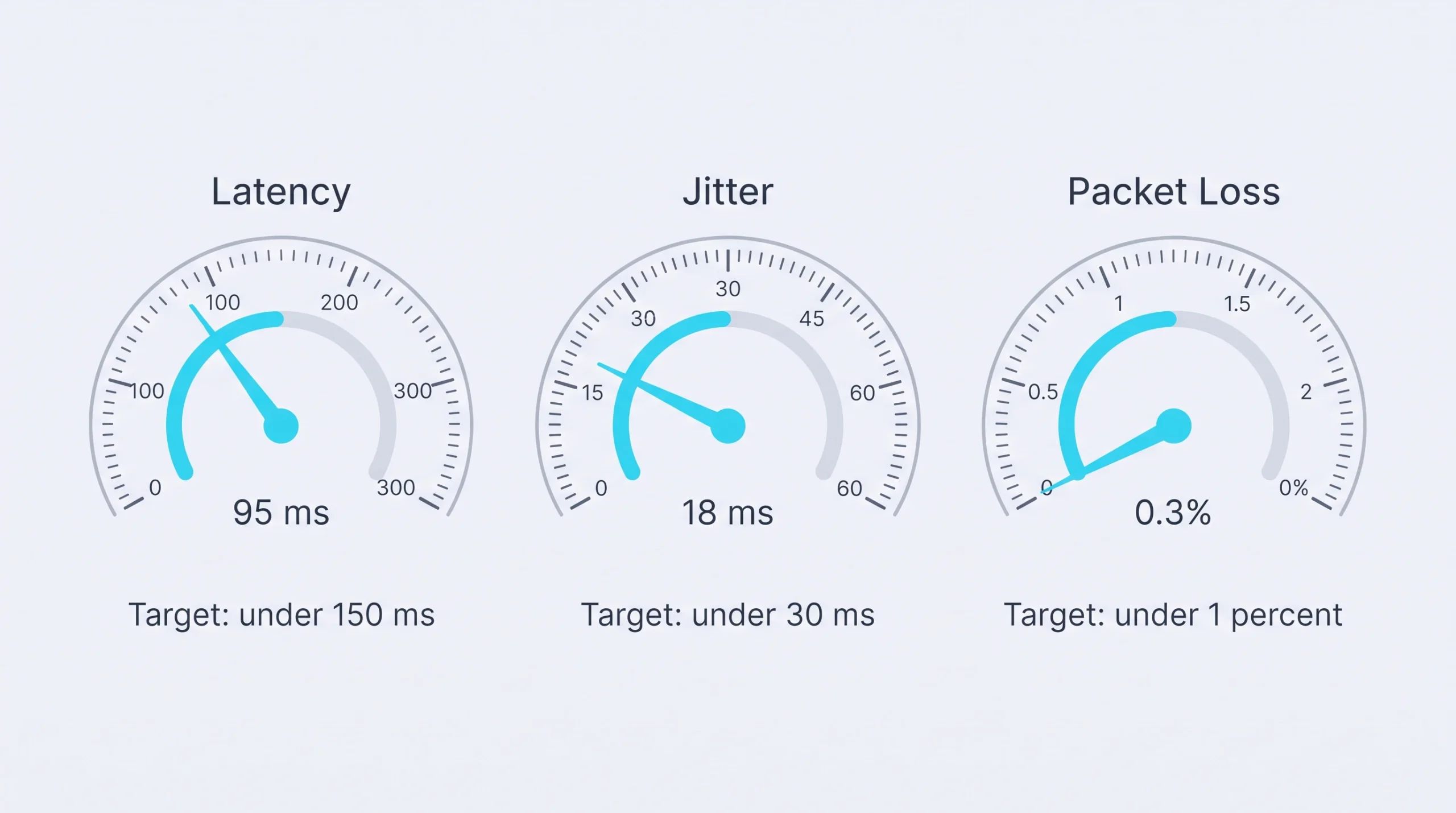
Latency is how long a voice packet takes to arrive. Jitter is how unevenly packets arrive. Packet loss is the packets that never show up. For clear calls, keep one-way latency under 150 milliseconds, average jitter under 30 milliseconds and loss under 1 percent.
Those targets come from ITU-T Recommendation G.114 on delay and from Cisco’s QoS design guidance on loss and jitter. Notice what’s missing: speed. A 500 Mbps connection with 4 percent packet loss sounds worse than a 25 Mbps line with none.
To measure, use your phone provider’s call quality report, or run a continuous ping to the provider for ten minutes during your busiest hour. A wide gap between the fastest and slowest replies is jitter. Missing replies are loss.
The 9 fixes, in order of probability
1. Take the phone off Wi-Fi
Plug the desk phone or laptop into Ethernet. Wi-Fi adds jitter even when the signal bars look full. You’ll know it worked when the same call that broke up on wireless is clean on the wire. If that’s your result, skip ahead to fix 7.
2. Turn off SIP ALG
SIP ALG is a router feature meant to help VoIP pass through a firewall. It rewrites call setup packets, and with most business phone platforms it does more harm than good. Many routers ship with it switched on. Disable it. You’ll know it worked when one-way audio and the 30-second drops stop.
3. Give voice traffic priority
Without quality of service (QoS) rules, a voice packet waits in line behind a 2 GB file upload. Put phones on their own voice VLAN and have the firewall prioritize traffic marked DSCP EF, the standard marking for telephony described in RFC 4594. You’ll know it worked when calls stay clean while someone runs a large upload.

4. Find what’s eating your upload
Voice needs very little bandwidth, but it needs it constantly. The usual suspects are cloud backups running during business hours, a large file sync, and security cameras that record to the cloud. Eight cameras streaming off site can use more upload than every phone in the office combined. Because we install both systems, we check camera upload settings on every voice complaint. Move backups to overnight and cap camera bitrates. You’ll know it worked when the mid-afternoon degradation disappears.
5. Deal with the ISP’s modem-router combo
The all-in-one gateway from your internet provider is often routing traffic a second time in front of your own firewall, a setup called double NAT. It confuses call routing. Ask the ISP to put its device in bridge mode so your firewall is the only router. You’ll know it worked when random drops and phones showing “no service” stop.
6. Check the cable and the switch port
A kinked patch cable, a failing switch port, or a PC daisy-chained through an older phone’s pass-through port will all cause intermittent trouble at one desk. Swap the cable and move to another port. You’ll know it worked when the problem phone behaves on the new port.
7. Fix the Wi-Fi properly
If softphones and cordless handsets have to live on Wi-Fi, they need 5 GHz coverage, access points placed for the building’s layout, and clean roaming between them. Our guide to fixing office Wi-Fi dead zones covers placement in detail. You’ll know it worked when you can walk the office on a call without a dropout.
8. Update firmware and check the codec
Old firmware carries old bugs, so update the phones and the firewall. Confirm the phones use the G.711 codec where bandwidth allows, since compressed codecs handle packet loss poorly. For echo, try a different handset or headset before blaming the network. You’ll know it worked when audio sounds fuller, or the echo vanishes on the swapped handset.
9. Take evidence to the ISP, or add a second circuit
If a single computer wired straight into the modem still shows packet loss, the circuit is the problem. Send the ISP your ping results with timestamps. In buildings with aging coax, the lasting fix is often a second connection with automatic failover.
Picture a 12-person office in a century-old building on Main Street in Denison. One cable internet circuit, original coax from the street, and call quality that falls apart every afternoon. Measured loss at the modem says the line itself is marginal, and unlike central Dallas there may be only one or two wired carriers to choose from. The practical answer is a repair ticket backed by data, plus a cellular or fixed-wireless backup circuit the firewall fails over to automatically. That design work is a regular part of our IT support in Denison.
When to stop and call a pro
Stop troubleshooting on your own if any of these is true:
- A single wired computer at the modem shows more than 1 percent packet loss.
- One-way audio continues after SIP ALG is off.
- Nobody in the office has the firewall admin login.
- You’ve made three changes and can’t tell which one mattered.
Voice problems are intermittent, and intermittent problems reward measurement over guessing. Our network support team can capture a bad call as it happens and read exactly where the packets went missing.
Our take: fix the network before you change phone providers over call quality. An office that switches carriers takes its misconfigured firewall along to the new one.
Keeping call quality from sliding back
Call quality regresses quietly. The usual trigger is a firewall replacement: the new unit goes in with default settings, and the QoS rules go out with the old one. A few habits prevent that.
- Keep voice on its own VLAN with QoS, and document the settings so the next hardware swap doesn’t erase them.
- Schedule backups and large syncs outside business hours.
- Review the provider’s call quality report monthly, before anyone complains.
- Put the modem, firewall and PoE switch on battery backup.
If it were our building: we’d add a second internet circuit before spending a dollar on nicer phones. Good phones on a bad line still sound bad.
And if a rough month has someone suggesting a return to copper lines, read our VoIP vs landline comparison first.
Frequently Asked Questions
Why are my VoIP calls choppy?
What is acceptable jitter for VoIP?
How much internet speed does VoIP need?
Does Wi-Fi affect VoIP call quality?
When the list runs out
If calls still break up after all nine, it’s time to measure a live call. Send us what you’re hearing along with when it happens, and we’ll tell you where we’d look first.